This is the story of how a “we’ve disabled this for your safety” support ticket turned into a teardown, an Allwinner FEL session, and a hand-planted ADB key.
The dead end: a toggle that does nothing
Frameo’s on-device settings menu actually has a “Enable ADB debugging” option. Flip it, and normally you’d expect the familiar Android “Allow USB debugging?” dialog with the RSA key fingerprint to pop up. Instead: nothing. No dialog, no connection possible, just silence.
I opened a support ticket. The reply, verbatim:
“We’ve thoroughly discussed your request with the manufacturer. They indicated that since the ADB debugging interface is subject to strict system-level permission controls, enabling it could potentially cause irreversible damage to the system programs. Therefore, this setting is currently unavailable. We appreciate your understanding.”
That’s not really an explanation — ADB debugging doesn’t cause “irreversible damage” any more than any other Android feature — but it did confirm this wasn’t a bug I could fix from the settings menu. So I opened the case.
What’s actually inside
Popping the back off the frame revealed a board silkscreened MS33-V2.0, built around an Allwinner A33 SoC — a quad-core Cortex-A7 part that Allwinner has shipped in a huge number of budget tablets and, apparently, photo frames.
More interestingly, the board has an unpopulated set of pads clearly labeled UPDATE, footprinted for a tactile switch that was never soldered on. On Allwinner designs this is almost always the FEL/recovery strap: a GPIO sampled by the boot ROM at power-on that, when pulled to the active state, forces the SoC to skip its normal boot media (eMMC/NAND/SD) and drop into FEL mode instead.
There’s also an RX/TX header on the board — 3.3V logic levels, 115200 baud, the usual Allwinner debug UART setup. Hooking up a USB-to-serial adapter and powering the frame on normally, though, got nothing readable: either silence or garbage that didn’t resolve at any of the usual rates. Whatever console the stock firmware uses, it isn’t coming out on those pins during a normal boot.
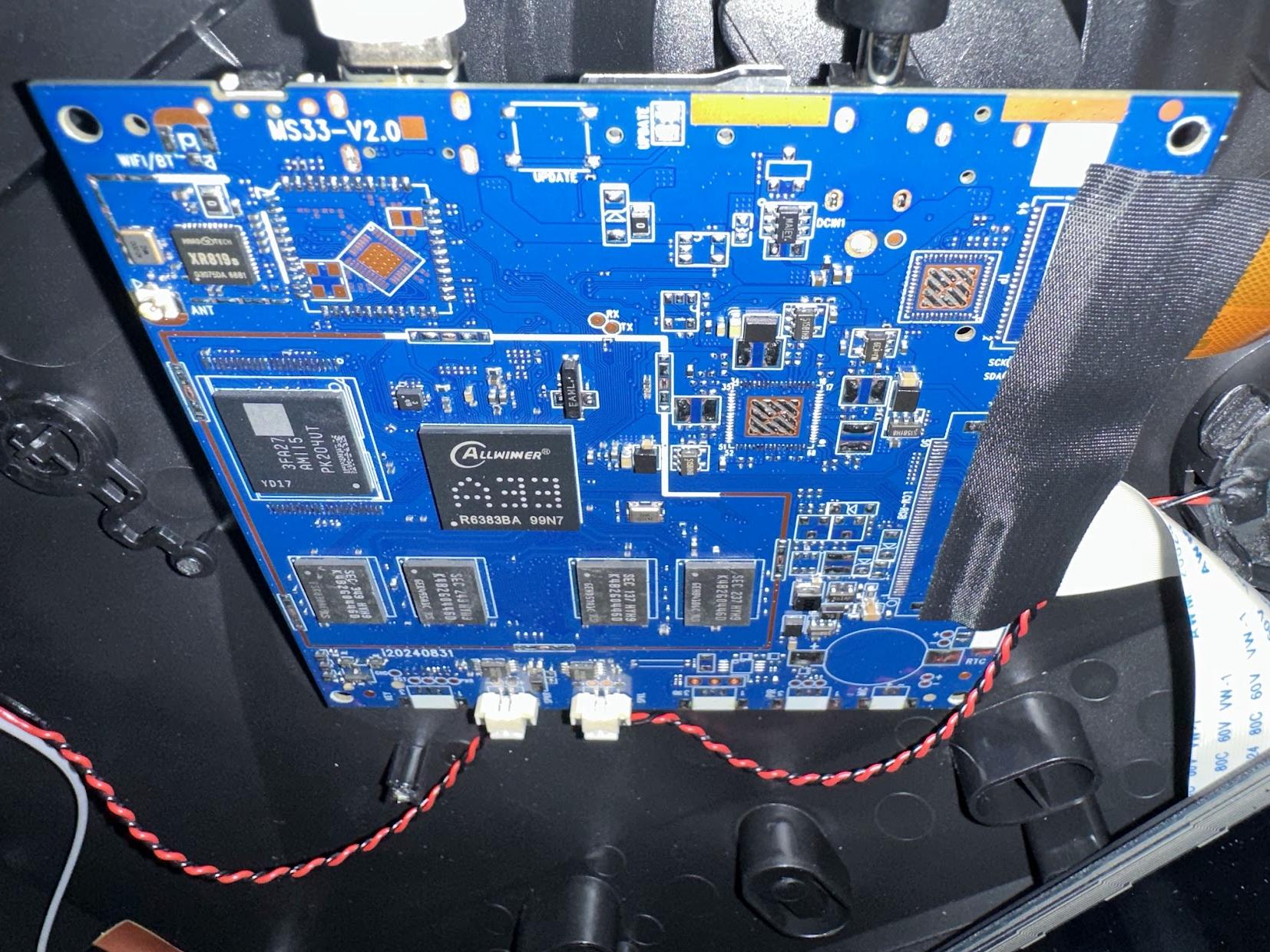 The MS33-V2.0 board out of the frame — Allwinner SoC dead center,
 UPDATE footprint and RX/TX pads on the left edge, WiFi/BT module bottom-left.
FEL mode: the backdoor Allwinner can’t disable
FEL (Firmware Loader) is a first-stage USB recovery protocol baked into the boot ROM (BROM) of every Allwinner SoC — it’s mask-programmed into silicon, so no amount of vendor software lockdown on top of it can remove it. When a chip enters FEL, it enumerates over USB with a fixed identity:
Bus 001 Device 004: ID 1f3a:efe8 Allwinner Technology sunxi SoC OTG connector in FEL/flashing mode
At this stage there’s no OS, no filesystem, no Android permission model — just the BROM waiting for commands to read/write SRAM and DRAM and to hand off execution. The standard tool for talking to it is sunxi-fel, part of the sunxi-tools package from the linux-sunxi project.
Forcing FEL and talking to the chip
With the UPDATE pads shorted (a pair of tweezers works fine — no soldering needed since the footprint is exposed) while applying power, the frame came up silent with a blank screen and enumerated as 1f3a:efe8 on the host. From there:
$ sunxi-fel version
AWUSBFEX soc=00186300(A33) ver=0001 44 08 scratchpad=00007e00 00000000 00000000
That confirms the A33 identification and that the BROM is alive and listening.
Booting a custom U-Boot with USB Mass Storage
FEL by itself only gives you raw memory read/write and the ability to execute code — it doesn’t understand partitions or filesystems. To actually get at the frame’s internal storage, I cloned mainline U-Boot and built a custom binary with USB gadget mass storage enabled.
The stock sun8i-a33-q8-tablet device tree needed two changes: enabling the eMMC controller (the frame’s storage lives on mmc2, wired for 8-bit bus width and non-removable, unlike the Q8 tablet it started as) and switching USB OTG into gadget mode:
&mmc2 {
    pinctrl-names = "default";
    pinctrl-0 = <&mmc2_8bit_pins>;
    bus-width = <8>;
    non-removable;
    status = "okay";
};

&usb_otg {
    dr_mode = "peripheral";
    status = "okay";
};
For the defconfig, I started from configs/q8_a33_tablet_1024x600_defconfig — mainline U-Boot already has this for the generic Q8-format A33 tablets, and the panel timings and GPIO wiring (PH7 for power, PH6 for backlight enable, PH0 for PWM) turned out to be an exact match.
CONFIG_ARM=y
CONFIG_ARCH_SUNXI=y
CONFIG_DEFAULT_DEVICE_TREE="sun8i-a33-q8-tablet"
CONFIG_DRAM_CLK=456
CONFIG_SPL=y
CONFIG_MACH_SUN8I_A33=y
CONFIG_DRAM_ZQ=15291
CONFIG_AXP_GPIO=y
CONFIG_VIDEO_LCD_MODE="x:1024,y:600,depth:18,pclk_khz:51000,le:159,ri:160,up:22,lo:12,hs:1,vs:1,sync:3,vmode:0"
CONFIG_VIDEO_LCD_DCLK_PHASE=0
CONFIG_VIDEO_LCD_POWER="PH7"
CONFIG_VIDEO_LCD_BL_EN="PH6"
CONFIG_VIDEO_LCD_BL_PWM="PH0"
# CONFIG_SYS_MALLOC_CLEAR_ON_INIT is not set
CONFIG_REGULATOR_AXP_DRIVEVBUS=y
CONFIG_REGULATOR_AXP_USB_POWER=y
CONFIG_AXP_DLDO1_VOLT=3300
CONFIG_CONS_INDEX=5
CONFIG_USB_MUSB_HOST=y
Two things about it didn’t fit this board. First, it assumes an AXP-series PMIC handling power sequencing and VBUS/USB regulator control (CONFIG_AXP_GPIO, the REGULATOR_AXP_* options, CONFIG_AXP_DLDO1_VOLT) — this board doesn’t have that chip. Second, it boots into a U-Boot interactive prompt, which is fine if you have a serial cable, but doesn’t help on a headless device.
The minimal changes:
CONFIG_ARM=y
CONFIG_ARCH_SUNXI=y
CONFIG_DEFAULT_DEVICE_TREE="sun8i-a33-q8-tablet"
CONFIG_DRAM_CLK=456
CONFIG_SPL=y
CONFIG_MACH_SUN8I_A33=y
CONFIG_DRAM_ZQ=15291
CONFIG_SUNXI_NO_PMIC=y
CONFIG_VIDEO_LCD_MODE="x:1024,y:600,depth:18,pclk_khz:51000,le:159,ri:160,up:22,lo:12,hs:1,vs:1,sync:3,vmode:0"
CONFIG_VIDEO_LCD_DCLK_PHASE=0
CONFIG_VIDEO_LCD_POWER="PH7"
CONFIG_VIDEO_LCD_BL_EN="PH6"
CONFIG_VIDEO_LCD_BL_PWM="PH0"
# CONFIG_SYS_MALLOC_CLEAR_ON_INIT is not set
CONFIG_CONS_INDEX=5
CONFIG_CMD_USB_MASS_STORAGE=y
CONFIG_USB_GADGET=y
CONFIG_USB_GADGET_DOWNLOAD=y
CONFIG_USB_MUSB_GADGET=y
CONFIG_BOOTDELAY=0
CONFIG_BOOTCOMMAND="ums 0 mmc 2"
BOOTDELAY=0 plus BOOTCOMMAND="ums 0 mmc 2" means there’s no U-Boot prompt to babysit — it boots straight into exposing mmc2 (the eMMC) as a USB mass-storage device the moment SPL hands off control.
Built with:
$ make ARCH=arm CROSS_COMPILE=arm-linux-gnueabihf- q8_a33_tablet_1024x600_defconfig
$ make ARCH=arm CROSS_COMPILE=arm-linux-gnueabihf- -j$(nproc)
and injected the resulting image straight into SRAM/DRAM over FEL, with no write to the frame’s actual storage yet:
$ sunxi-fel -v uboot u-boot-sunxi-with-spl.bin
If the DTS and defconfig are right, this is the whole show: SPL brings up DRAM, U-Boot loads, BOOTCOMMAND fires automatically, and the eMMC shows up as a plain block device on the host — no device tree blobs, no kernel, nothing but a bootloader doing exactly what you asked.
One side effect of all this: CONFIG_CONS_INDEX=5 carried over untouched from the base Q8 defconfig, and it turned out to be exactly right for this board too — the moment this custom U-Boot started booting, the UART sprang to life at 115200 and began outputting logs. Score one for the linux-sunxi community’s generalized hardware templates.
Mounting the frame’s storage on my PC
Back on the host, the frame now shows up as an ordinary disk. The full partition table:
Disk /dev/sda: 28.91 GiB, 31037849600 bytes, 60620800 sectors
Disk model: UMS disk 0
Disklabel type: dos

Device      Boot    Start      End  Sectors  Size Id Type
/dev/sda1   *     4268032 60719103 56451072 26.9G  b W95 FAT32
/dev/sda2         73728    139263    65536   32M  6 FAT16
/dev/sda3         1       4128768  4128768    2G  5 Extended
/dev/sda5         139264   172031    32768   16M 83 Linux
/dev/sda6         172032   204799    32768   16M 83 Linux
/dev/sda7         204800  2301951  2097152    1G 83 Linux
/dev/sda8        2301952  2334719    32768   16M 83 Linux
/dev/sda9        2334720  2400255    65536   32M 83 Linux
/dev/sda10       2400256  3973119  1572864  768M 83 Linux
/dev/sda11       3973120  4005887    32768   16M 83 Linux
/dev/sda12       4005888  4038655    32768   16M 83 Linux
/dev/sda13       4038656  4039679     1024  512K 83 Linux
/dev/sda14       4039680  4071423    31744 15.5M 83 Linux
/dev/sda15       4071424  4235263   163840   80M 83 Linux
/dev/sda16       4235264  4268031    32768   16M 83 Linux
Twelve small Linux-type (id 83) partitions and one tiny FAT16 partition sit behind the extended container — none of those needed touching for this. The one that mattered is /dev/sda1: a standard FAT32, about 27GB, mounted on /data by the Android runtime.
$ sudo mount /dev/sda1 /mnt/frame
A stock recovery log later confirmed exactly what each of those partitions is for. Its kernel command line includes a partitions= argument mapping every one of them by name to an mmcblk0pN device node:
partitions=bootloader@mmcblk0p2:env@mmcblk0p5:boot@mmcblk0p6:system@mmcblk0p7:misc@mmcblk0p8:recovery@mmcblk0p9:cache@mmcblk0p10:metadata@mmcblk0p11:private@mmcblk0p12:frp@mmcblk0p13:empty@mmcblk0p14:userdata@mmcblk0p1
Matched up against the sizes from fdisk, it’s a completely conventional Allwinner/Android layout — bootloader, env, boot, system (the 1G partition), misc, recovery, cache (768M, big because this is a media device), metadata, private, frp, and finally userdata at the front.
Planting the ADB key by hand
Android’s ADB authorization dialog isn’t magic — it’s backed by a plain text file. When you accept the “Allow USB debugging?” prompt, adbd appends the connecting host’s public key (the content of ~/.android/adbkey.pub on your machine) to a file on the device:
/data/misc/adb/adb_keys
On every subsequent connection, adbd checks incoming keys against that file and skips the dialog entirely if there’s a match. Since the frame’s launcher apparently never implements or shows that dialog, the manufacturer probably expects no one will ever need to use it.
With the userdata partition mounted, the fix was direct — write the host key straight into the file adbd already checks:
$ mkdir -p /mnt/frame/misc/adb
$ cat ~/.android/adbkey.pub >> /mnt/frame/misc/adb/adb_keys
No chmod/chown here — the partition turned out to be FAT32, which doesn’t store per-file Unix ownership or permission bits at all, so those calls are meaningless on this filesystem (and the permissions Android cares about are enforced at the SELinux policy level anyway).
Then, cleanly unmount before pulling power — this is a raw block device, not a live filesystem, so no lazy writes should be left pending:
$ sudo umount /mnt/frame
The payoff
Power cycled the frame normally (no more shorting the UPDATE pads — this boots from eMMC as usual), plugged it into the host over its regular USB-C port, and:
$ adb devices
List of devices attached
<serial>    device
device, not unauthorized — no prompt ever appeared, because none needed to. The key was already in the trusted list before Android’s ADB stack even started.
What’s next
With a working, authorized adb connection, follow the ImmichFrame setup instructions for Frameo devices to sideload the app and configure it.
If you’re trying this yourself
A few honest caveats:
- You’re writing to a raw partition from outside Android’s normal write path. Dump the partition (or at least the parts you’re touching) before you write anything, so you have something to restore if the write messes things up.
- The UPDATE-pad-as-FEL-strap trick is common on Allwinner designs but not guaranteed — confirm your SoC and strap behavior before assuming it maps the same way.
- This process only works because you have physical access to hardware you own. It’s not a remote exploit and shouldn’t be treated as one.
Manufacturer software policies can lock a menu toggle. They can’t touch what’s burned into the SoC’s boot ROM.
]]>